This short video shows the basic Typedeck workflow: add your content and watch the slide take shape as you work. We think this is a simpler and more efficient way to make slides.
The slide in this video is written by a college professor who studies student attention during lectures. It has a title, a short explanation, a few bullet points, and a chart. That is enough content to make the point, and it is also enough structure for Typedeck to compose the slide.
1. Add your title.
The workflow begins with a plain title:
Why Attention Fades During Lectures
In Typedeck, the title is not just a text box. It tells the app what the slide is centered on. As soon as the title is in place, the preview begins to show the slide’s shape.
2. Add some text.
Next, our professor wants to enter some text. So, she clicks “text” to open the text input card. The card holds the main point and the supporting lines, so the editor stays focused on the content rather than the canvas.

Notice how Typedeck is making the design decisions as more content gets added. It fluidly adjusts to make sure what you input looks good.
3. Add a chart.
The chart adds some numbers to the professor’s explanation. In Typedeck, the chart is another content card. She clicks on “chart” and puts in her data.
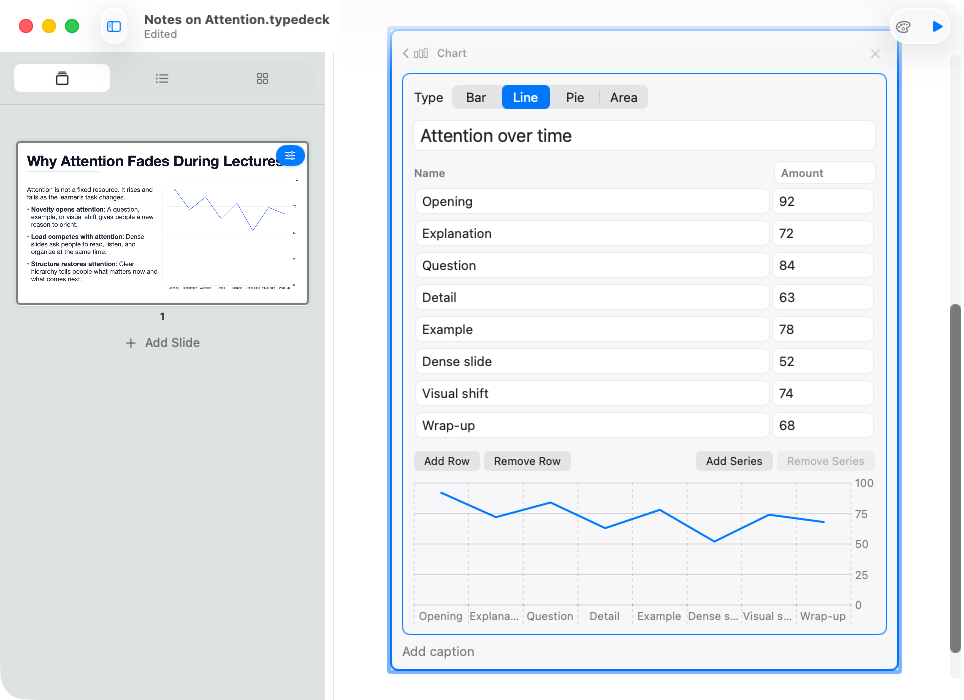
The slide updates around the new content. The title, explanation, and chart stay in one composed layout.
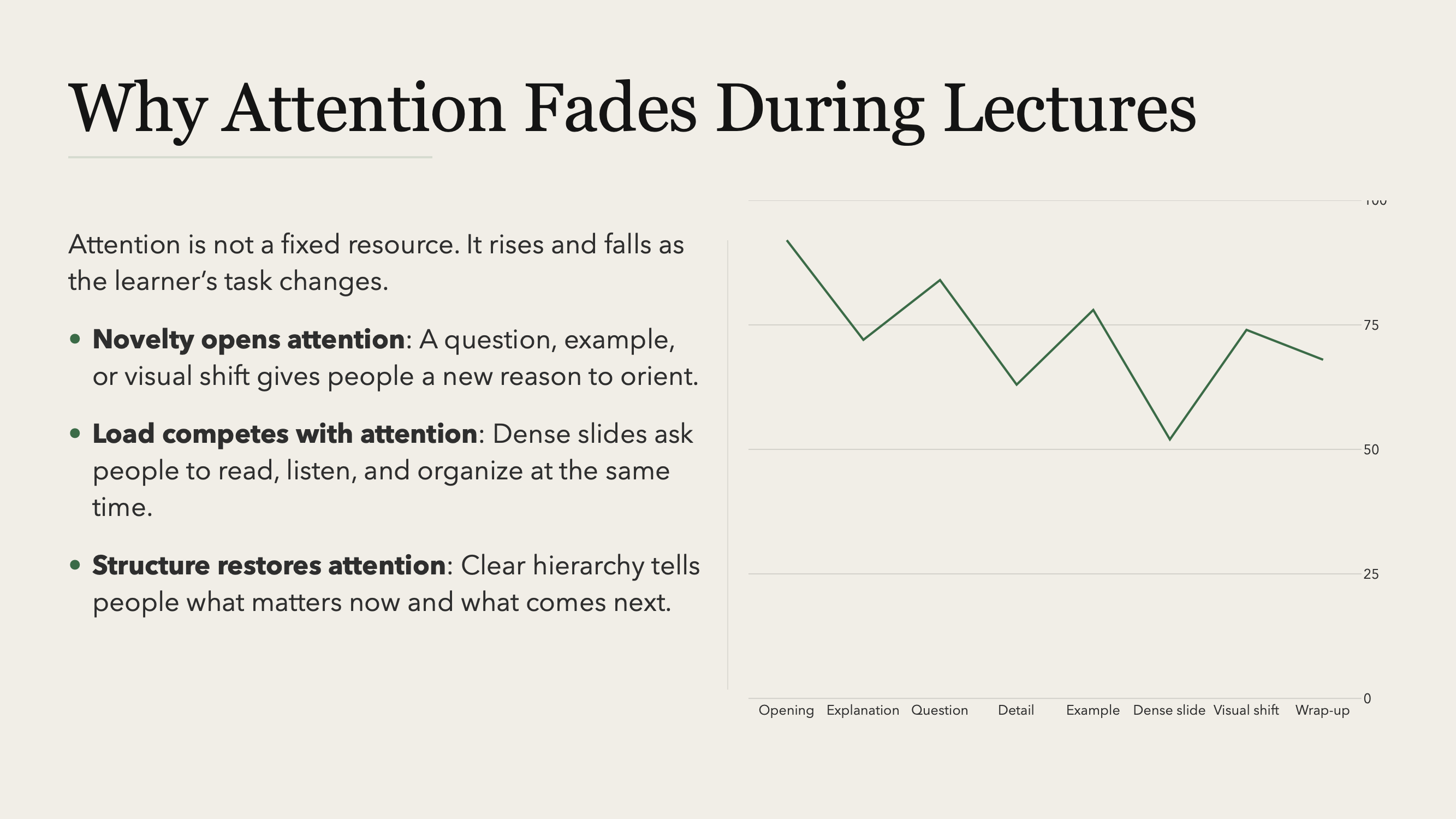
4. Why this feels better
Typedeck feels better because it lets you spend more of your time on your message and less of it rebuilding the slide around every edit.
Say what you mean. The slide takes care of itself.